
Hola! Here we are yet again to review a rung of the Drupal core ladder. This time, we are seeing the Write a patch rung. This rung teaches you how to create a patch to solve the issue created in the previous rung.
Prerequisites
Here are some of the stuff you must already know/have in order to continue with this tutorial:
- Have Git installed. If you haven’t already, you can follow this link to install it on your OS.
- You’ll be working with a sandbox version of Drupal in this exercise. It has been built with a known issue for you to patch. For this lesson, download and install Drupal 8 from the Drupal 8 Sandbox for Drupal Ladder
- Have a basic knowledge of Git. You can go to this link and this one to understand Git better. (This is optional and not required. It’s better to do it though.)
- Have a way to capture screenshots. To provide a screenshot of the bug, you should have a way to capture screen shots. Popular options include Skitch, Jing and Awesome Screenshot.
- An issue in the sandbox issue queue, as created in the Getting started in the issue queue lesson. You will need to know your issue number, which is the node ID for the issue on Drupal.org. You can easily find this by going to the issue page and then select the node ID from the page URL. E.g. if the issue page URL is http://drupal.org/node/1681300, the node ID, and therefore the issue ID is 1681300. Make note of this for reference in this lesson. Here is my issue queue: https://www.drupal.org/node/2836315
Note: Before we start, I’d like to mention that despite the fact that I ran everything as root, many of these commands don’t require root. I do it because I’m a forgetful person and I don’t like screenshot-ruining errors popping up.
1 - Create a branch for development
This is the first part of this rung, where you are asked to create a branch where we will be making our changes.
Note: you have to replace the stuff in brackets with your own details.For example, if your issue number is 1234567, you have to enter 1234567 instead of [issue-number].
- Go to your sandbox directory. In my case, it was:
cd ~/capsandbox/drupal_8_sandbox_for_drupal_ladder
2. Check what branch you’re in and make sure you are in 8.x.
git branch
3. Create a branch where you will work on your patch.
git branch [issue-number]-rewrite-description-for-url-alias
4. Now check out the branch you just created.
git checkout [issue-number]-rewrite-description-for-url-alias
5. Confirm you’re on the branch you just created.
git branch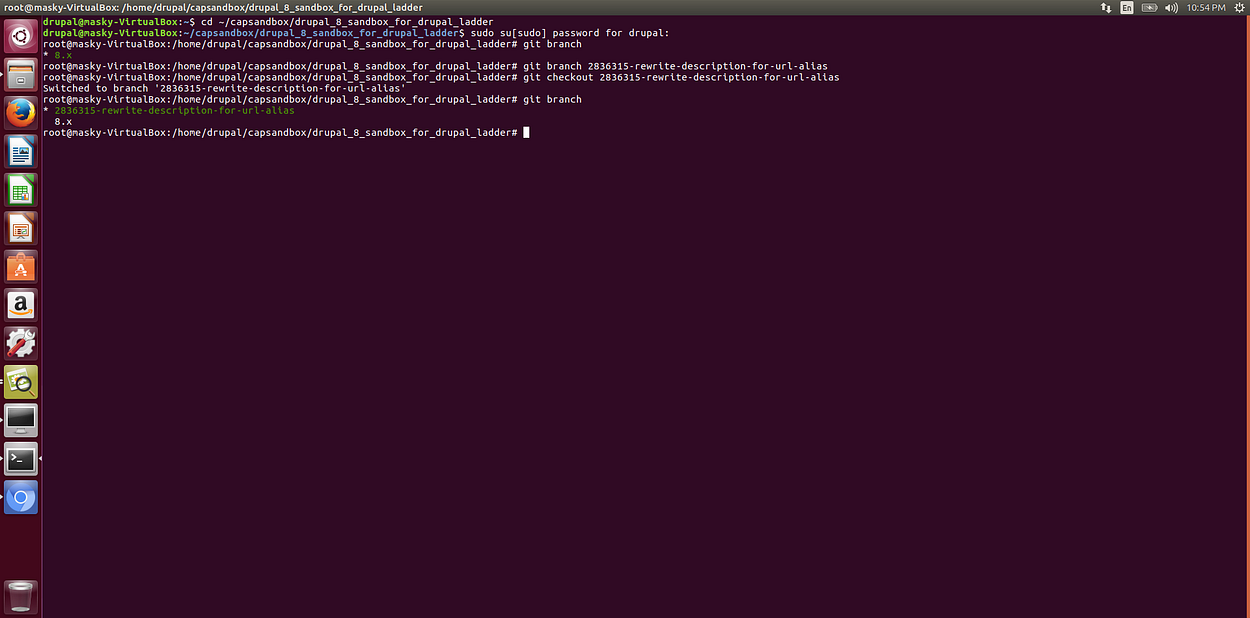
2- Make your edits.
This section of this ladder asks you to edit your path.module file, and then to review and screenshot the change in your browser. You are then required to review the changes made to path.module by using Git.
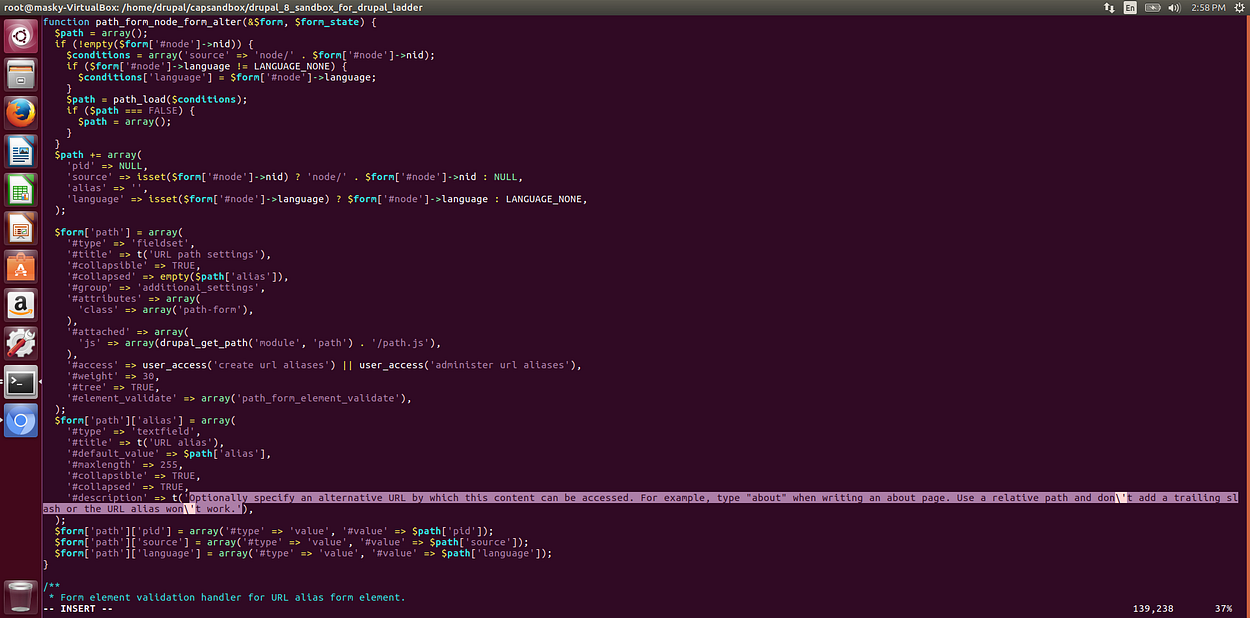
- Open the path.module file (e.g. my-sandbox/core/modules/path/path.module) with your favorite text editor.
- Go to line 139 and replace this:
Optionally specify an alternative URL by which this content can be accessed. For example, type "about" when writing an about page. Use a relative path and don't add a trailing slash or the URL alias won't work.
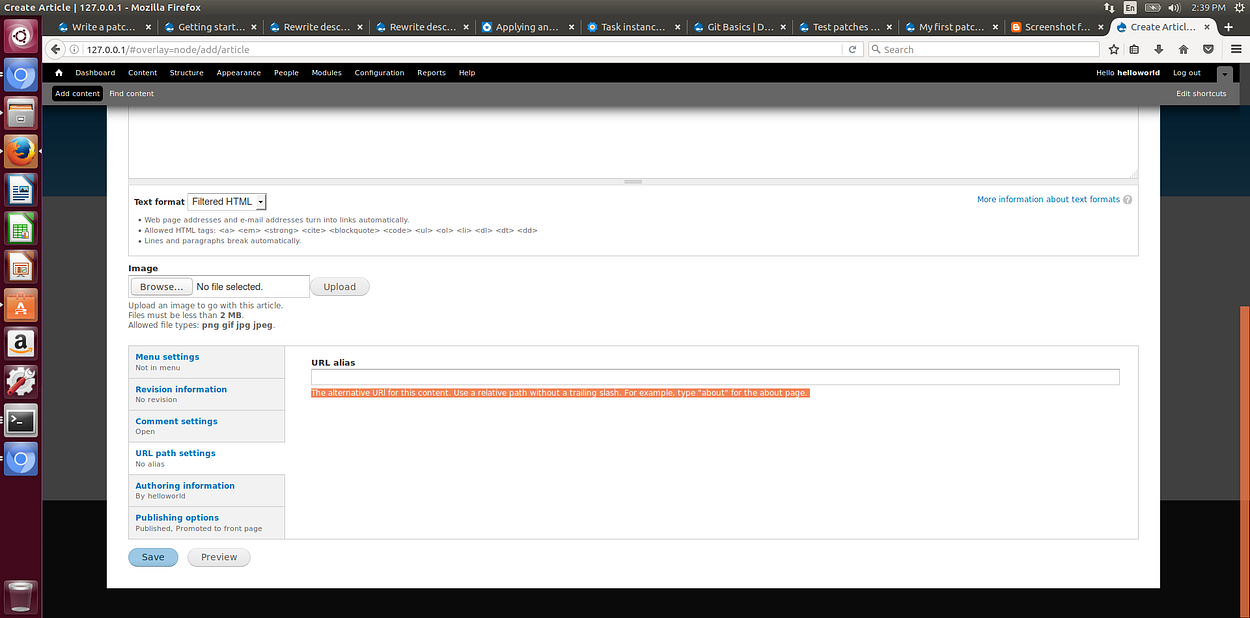
with this:The alternative URL for this content. Use a relative path without a trailing slash. For example, type "about" for the about page. - In your browser, go to Content > + Add content > Article (node/add/article), scroll down and click the URL path settings tab. Confirm your edit worked by seeing that the help text as changed, and confirm you didn’t accidentally introduce an error.
- Take a screen shot. Using your screenshot program, call out the changed text with an arrow or highlight. (You will upload this along with your patch.)
- See which files have changes pending.
git status - Review your changes in Git with a standard diff. (Note to exit the patch display, type the letter
qon your command line to quit viewing.)git diff
You can also review your changes word-by-word.git diff --word-diff - Commit your changes on your local development branch. The “-am” flag in this command is adding (a) the modified file to the local git repository with the message (m) that you provide being added to the git log.
git commit -am "Issue #[issue-number]. Updated description for URL alias on node form."
(When you commit your changes, git may generate and display a commit ID. The commit ID is a 40 character code, e.g. bc584d4ff96d434706211e2bef45613dd32d3c16. You can use this ID to refer to and review your commit.) - Review your commit.
git loggit show
Orgit show [commit ID]
Note: If you made a mistake, you can undo all of your changes.git reset --hard
3- Create and submit a patch
This part of the rung requires you to create the patch, to test it, add a comment with the patch in the issue queue and then to edit your issue queue to change its status to ‘needs review’.
- Figure out which comment number your patch will be attached to. Go to the issue and scroll down through the comments. Note the comment number for the last comment. Your patch will be attached to the next comment, so you will use that next sequential number for your patch. E.g. if the issue has 3 existing comments, your patch will be attached to comment 4. You will use the number 4 as part of your patch name in the next step.
- Generate a patch file using the following naming convention. Note that the patch filename cannot contain any spaces, so use dashes or underscores to separate words and numbers. This is taking the output of the git diff, which shows the changes between your branch and 8.x, and creating a file with that text, which ends in .patch
git diff 8.x > [description]-[issue-number]-[comment-number].patch - Test your patch by applying it to a branch before uploading in an issue queue, you can use the 8.x branch for this:
Checkout to the 8.x branchgit checkout 8.x
Apply the patchgit apply -v [description]-[issue-number]-[comment-number].patch
If the patch applies successfully, you can now upload your patch to the issue, but first, undo the changes done by the patch in the 8.x branch.git reset --hard - Go to your issue on Drupal.org.
- Post a comment on the issue and upload your patch and screenshot.
- Change status settings of the issue to “Needs Review”

Changing the status to ‘needs review’ will trigger the testbot, which will then automatically review the patch and will display the results. Patch Reviewers also use this status to find patches that need to be reviewed and evaluated. With sufficient positive feedback, the patch may be promoted to the status “Reviewed & Tested by the Community” [see next definition]. If a reviewer, either human or Bot, finds a problem with the patch, it will then be marked as “Needs Work”. Note that if a patch is not required in order to complete the idea described in the issue, then it is the idea itself that needs review. You can see what other statuses do on this page.
* Note: Normally you would now wait for the testbot to test your patch. This is a sandbox issue queue, so the testbot WILL NOT test your patch here. When you do post in a regular issue queue, the testbot will check your patch to make sure it doesn’t break anything. If your patch turns green, the patch applied cleanly and passed Drupal’s tests. Now if your patch passes tests by other members of the community, it can be committed. If your patch turns red, tests failed. Click the link for View details to see what’s going wrong, then re-write and re-submit your patch.
Bonus: Re-roll the patch
This last section of this guide teaches how to re-roll the patch in order for it to be compatible with newer versions of Drupal.
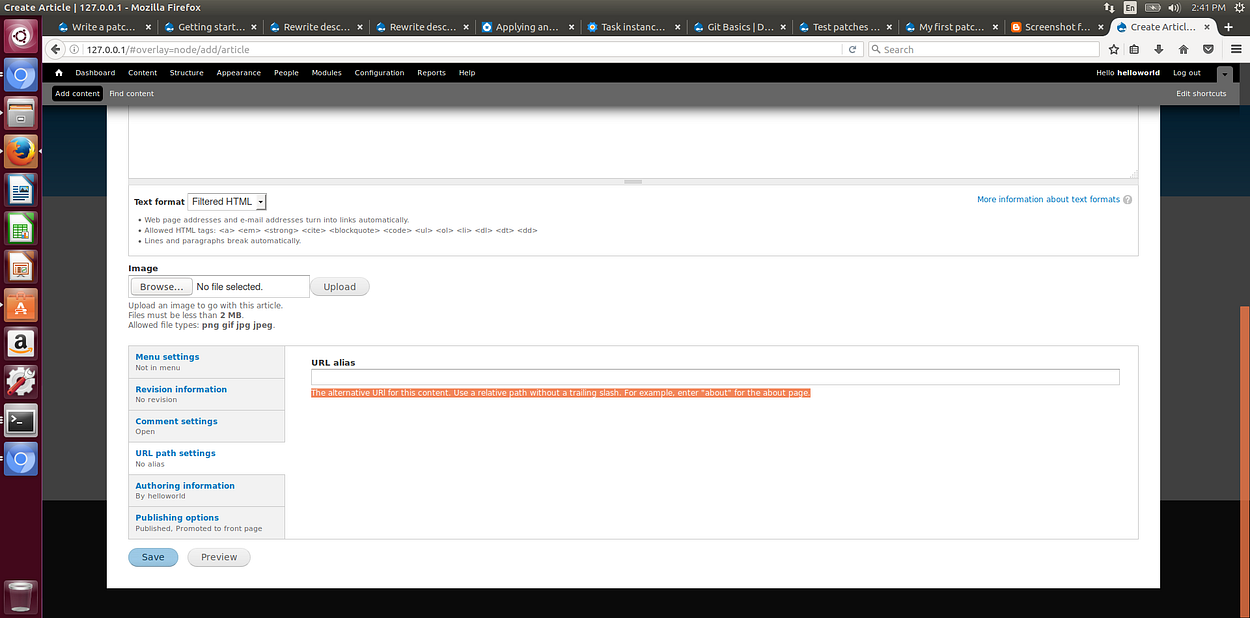
In the real patch to this issue, http://drupal.org/node/1326088#comment-5188202, the word ‘type’ was changed to ‘enter’ before it was finally committed. This means the patch can no longer be applied to the updated code base. The patch must thus be updated, or “re-rolled” to be compatible with the current version.
- Checkout your development branch.
git checkout my-branch - Make your edit, by changing the word ‘type’ to ‘enter.’
- Commit.
git commit -am "Issue #[issue-number]. [Description]." - Create a new patch with the updates.
git diff 8.x > [description]-[issue-number]-[comment-number].patch
Final Thoughts
This Drupal ladder taught me how to create a branch in Git for development, how to create a patch for a bug, how to submit the patch to drupal.org, and as a bonus, it also taught me how to re-roll the patch. This is a knowledge that will definitely be useful to me for future contributions to Drupal.


